

Learn how to get your team ready before your smartcard arrives and get a feel for Bankline
Overlay

Step 1

Before your smartcard and reader arrive
Your smartcard, card reader and smartcard PIN will arrive around 7 days after the ‘Step 1’ email we sent. While you’re waiting, there’s plenty to do to get ready.
This is the ideal time to talk to your team and gather the info you need.
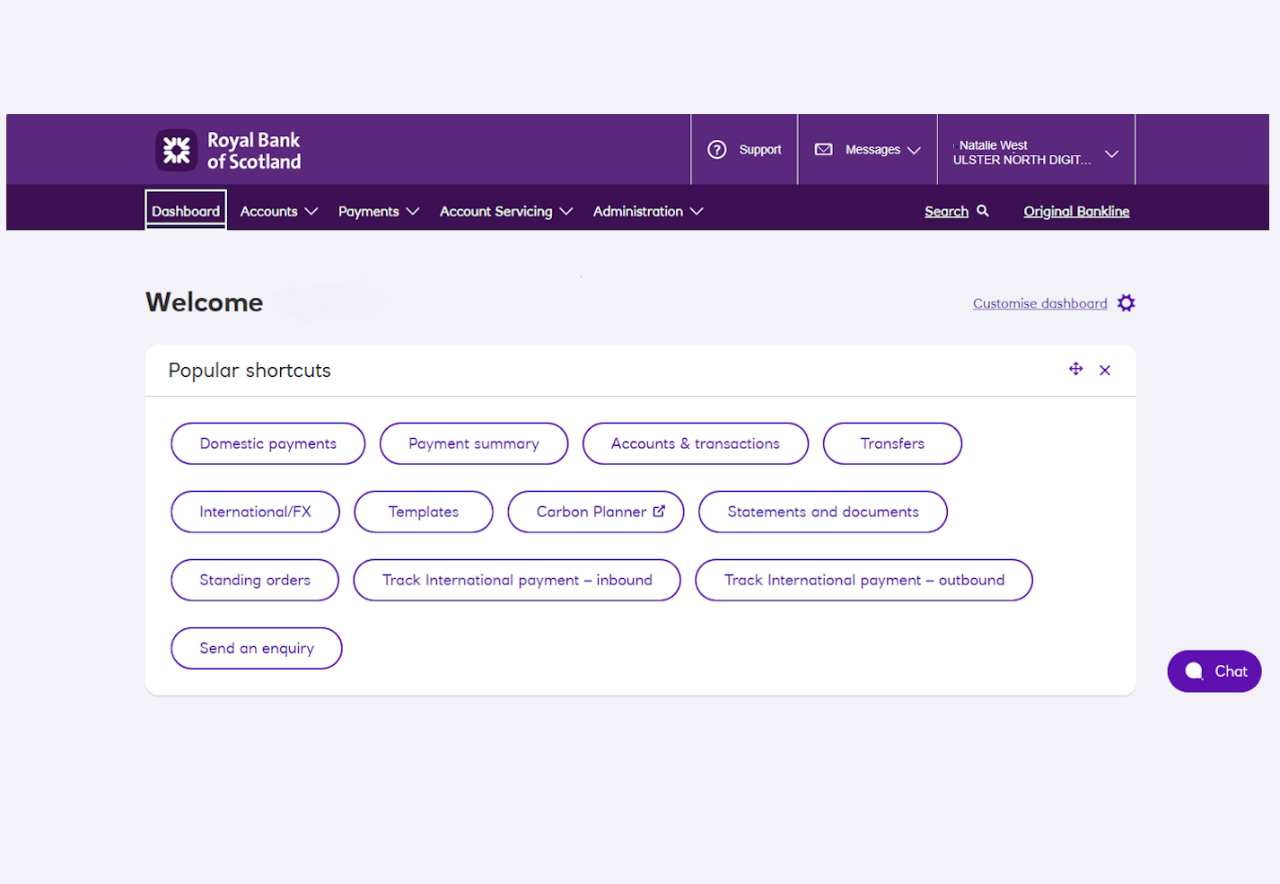
Dashboard
This is the page where you’ll land when you log in. It’s your gateway to all parts of Bankline. And you can make it your own:
Shuffle the order of panels, or remove them altogether.
We’ll let you know here when new features are available.
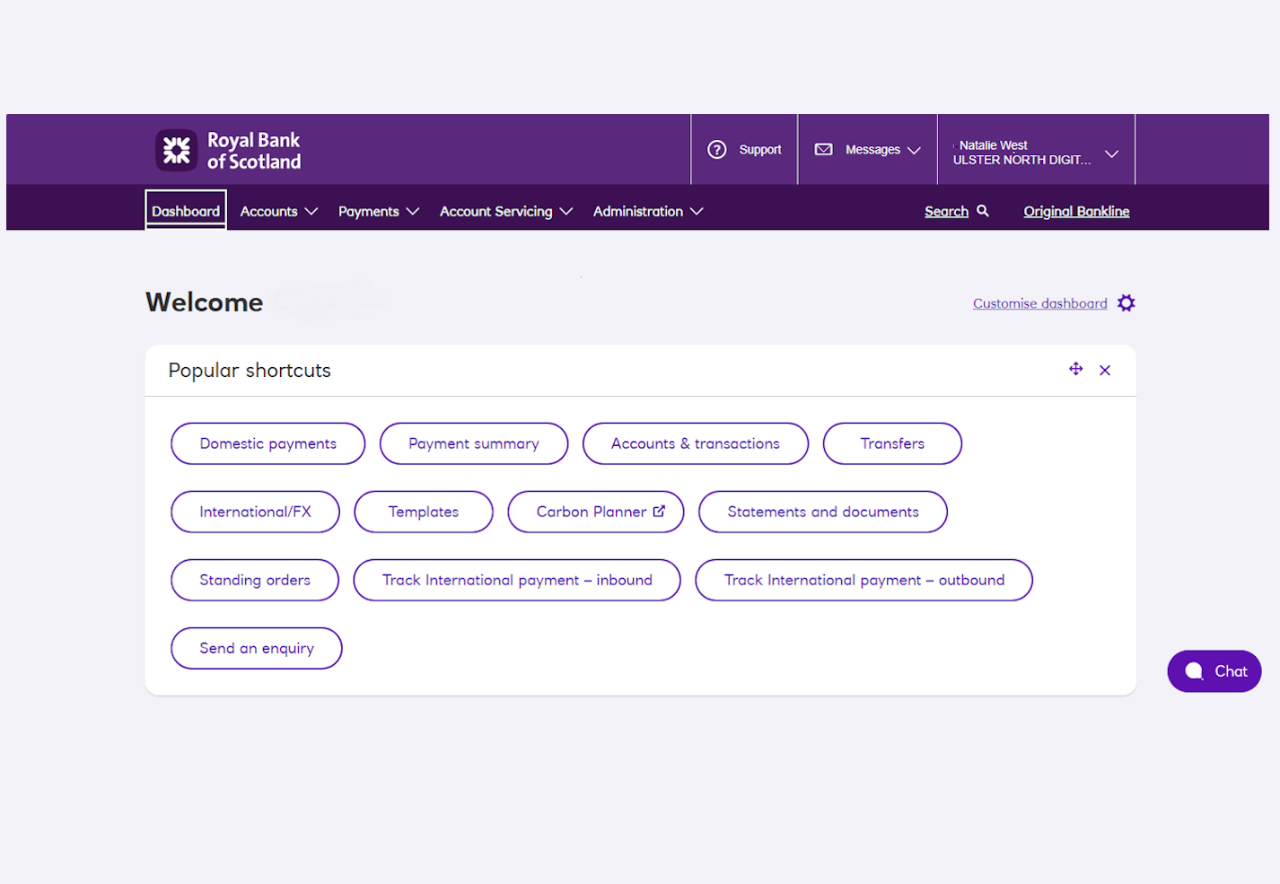
Dashboard
This is the page where you’ll land when you log in. It’s your gateway to all parts of Bankline. And you can make it your own:
Shuffle the order of panels, or remove them altogether.
We’ll let you know here when new features are available.
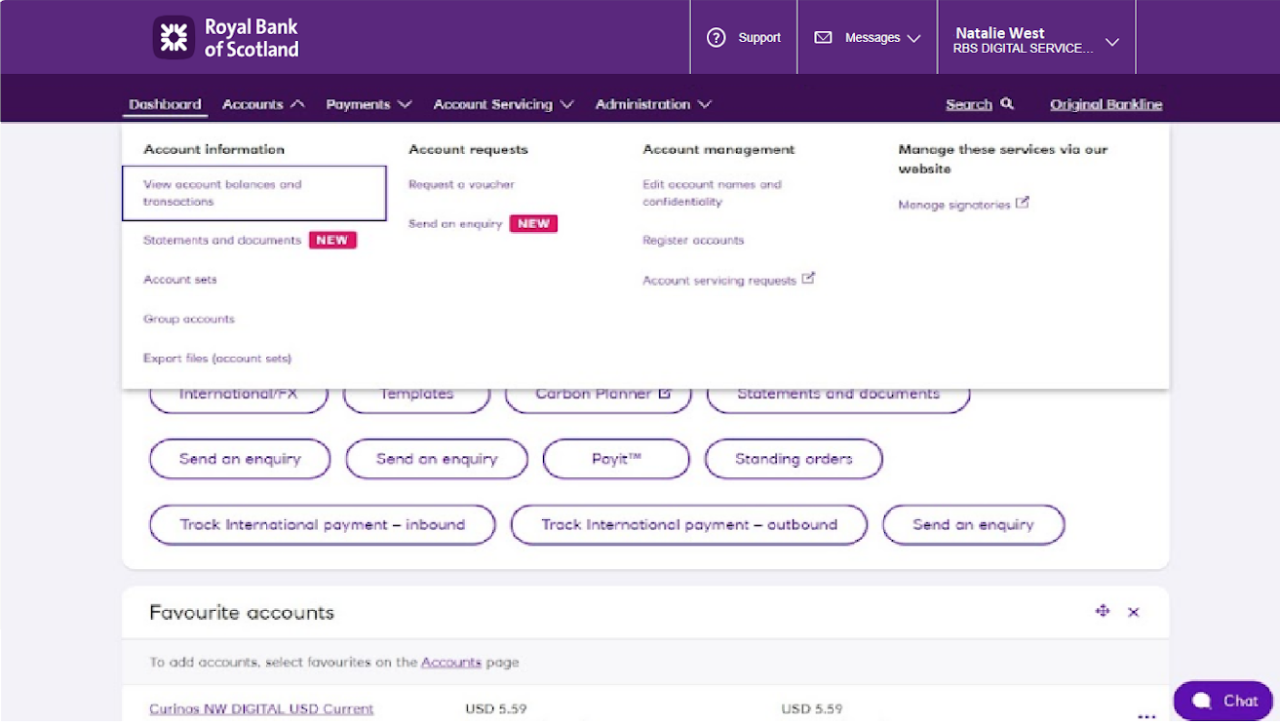
Accounts
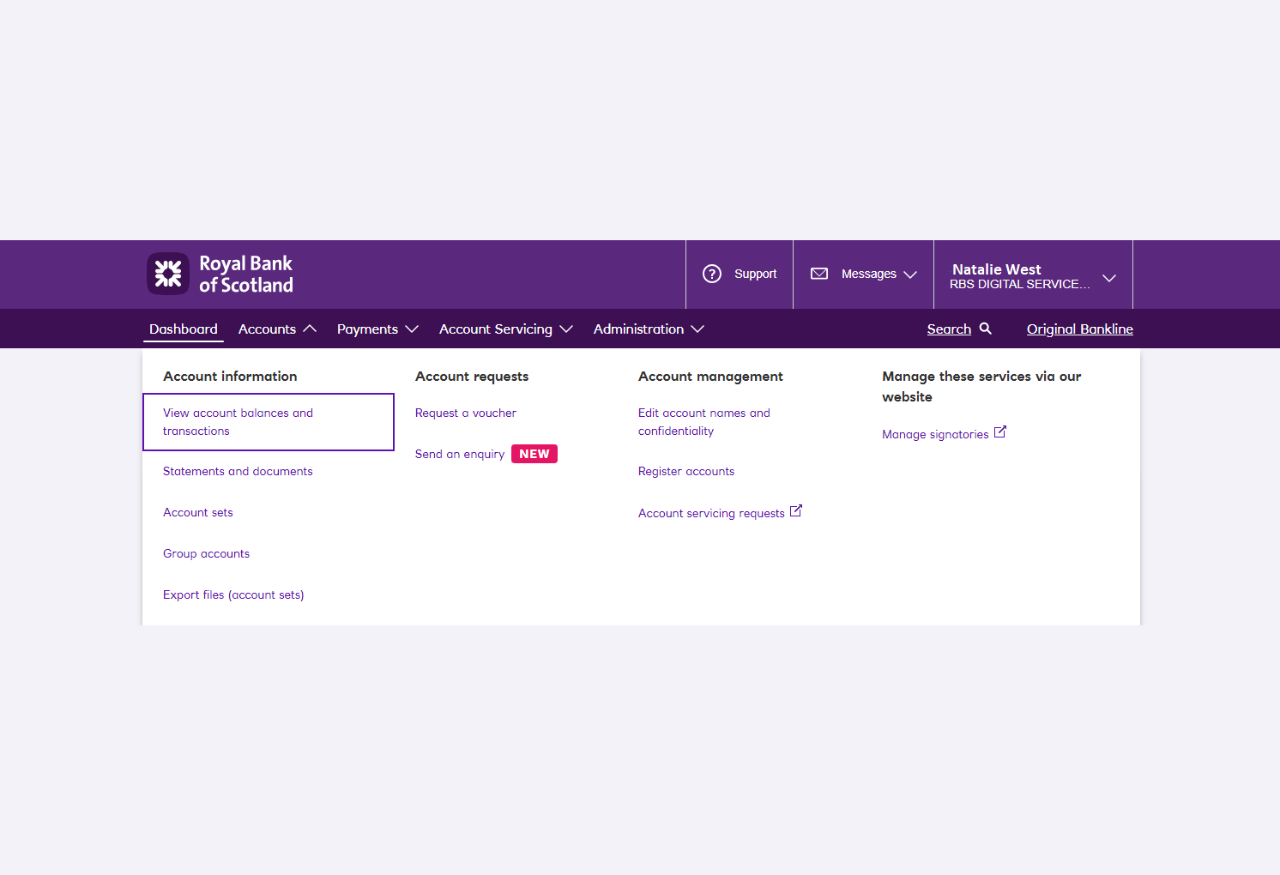
This is where you go to view and manage your accounts in Bankline. You’ll be able to:
View account balances and transactions and download statements.
Register accounts.
Group your accounts into account sets – useful for reporting.
The first time you log in, you’ll see your main account here. You’ll need to add in any additional accounts you require, and we’ll go through that in Step 2.
You also have the options to add third party accounts, and to control who has access to which accounts.
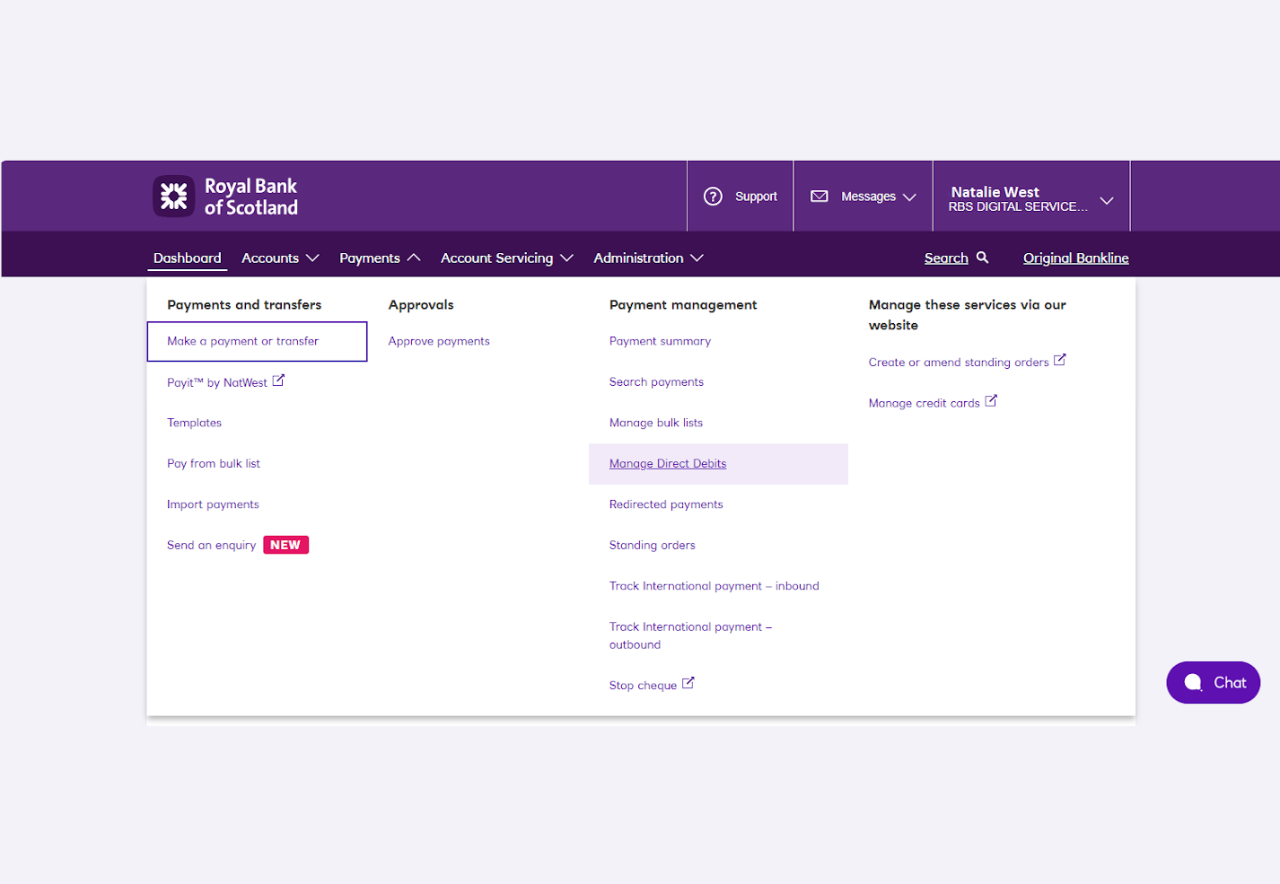
Payments
From here you can make, approve, manage and search payments.
You can make domestic UK payments and international payments. You can also make transfers between your own accounts, including currency accounts if you have them.
You can make single payments, bulk payments, and pay your regular payees from saved templates. More about these options in Step 3.
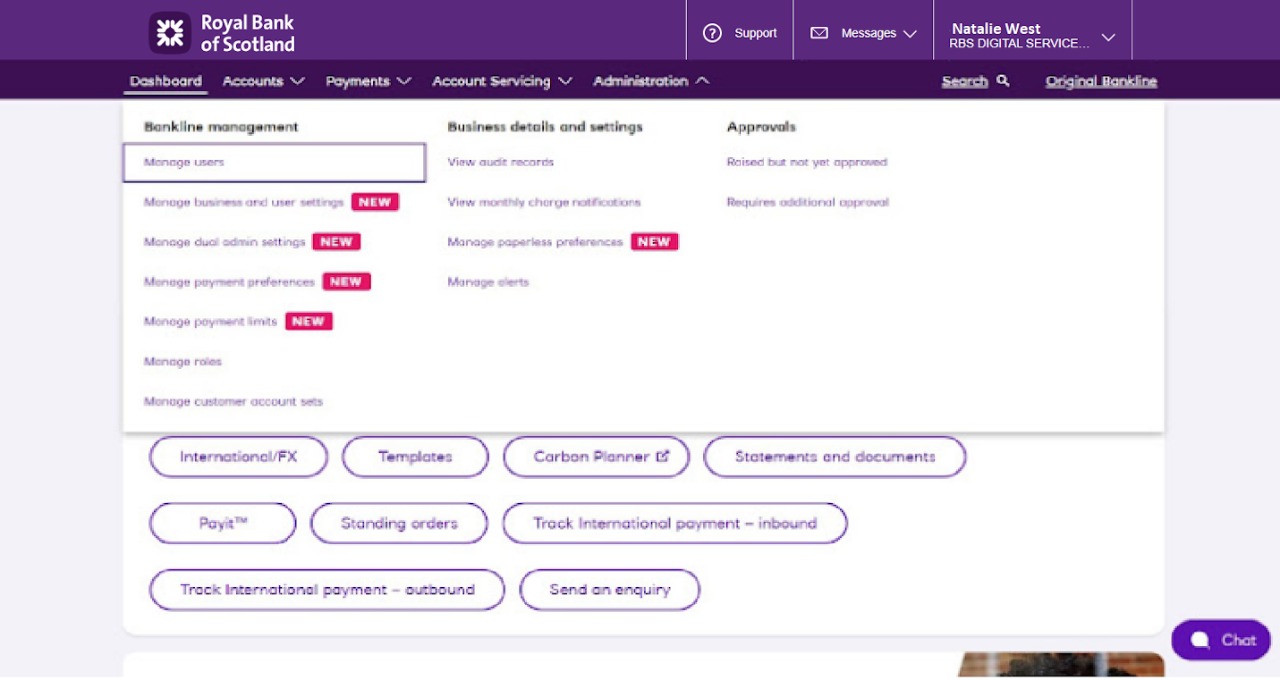
Administration
From this section administrative users can add and manage users and make changes to profile-level settings like payment limits.
This is where you’ll come to set up your profile and users. We’ll cover this in Step 2.
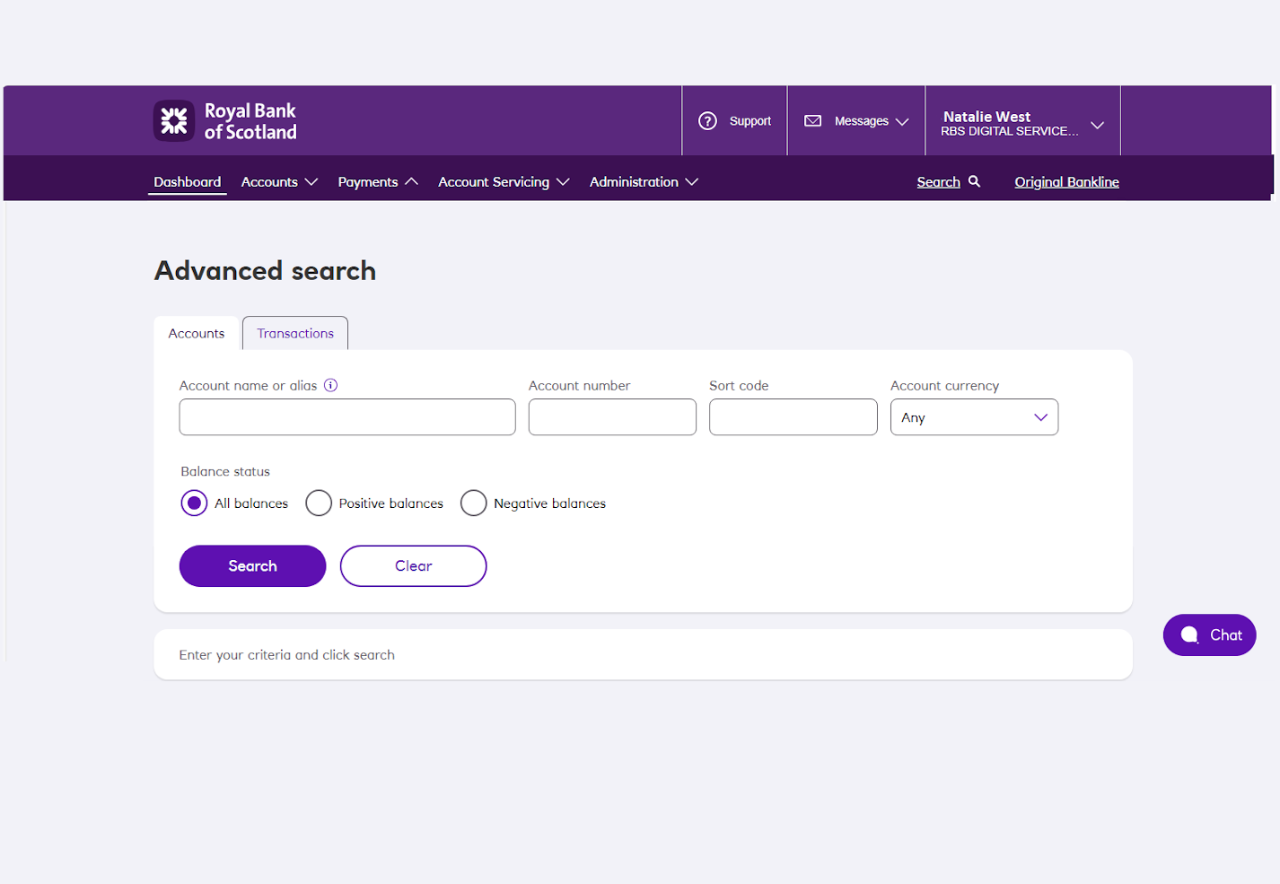
Search
If you want to search for any transactions in Bankline, look no further.
Search transaction across a maximum of 75 accounts, this includes search include completed transactions that go into or come out of your accounts.
Account servicing
Account servicing lets you make everyday banking requests in Bankline without having to pick up the phone.
These requests include things like:
Stopping cheques
Opening and closing accounts and more.
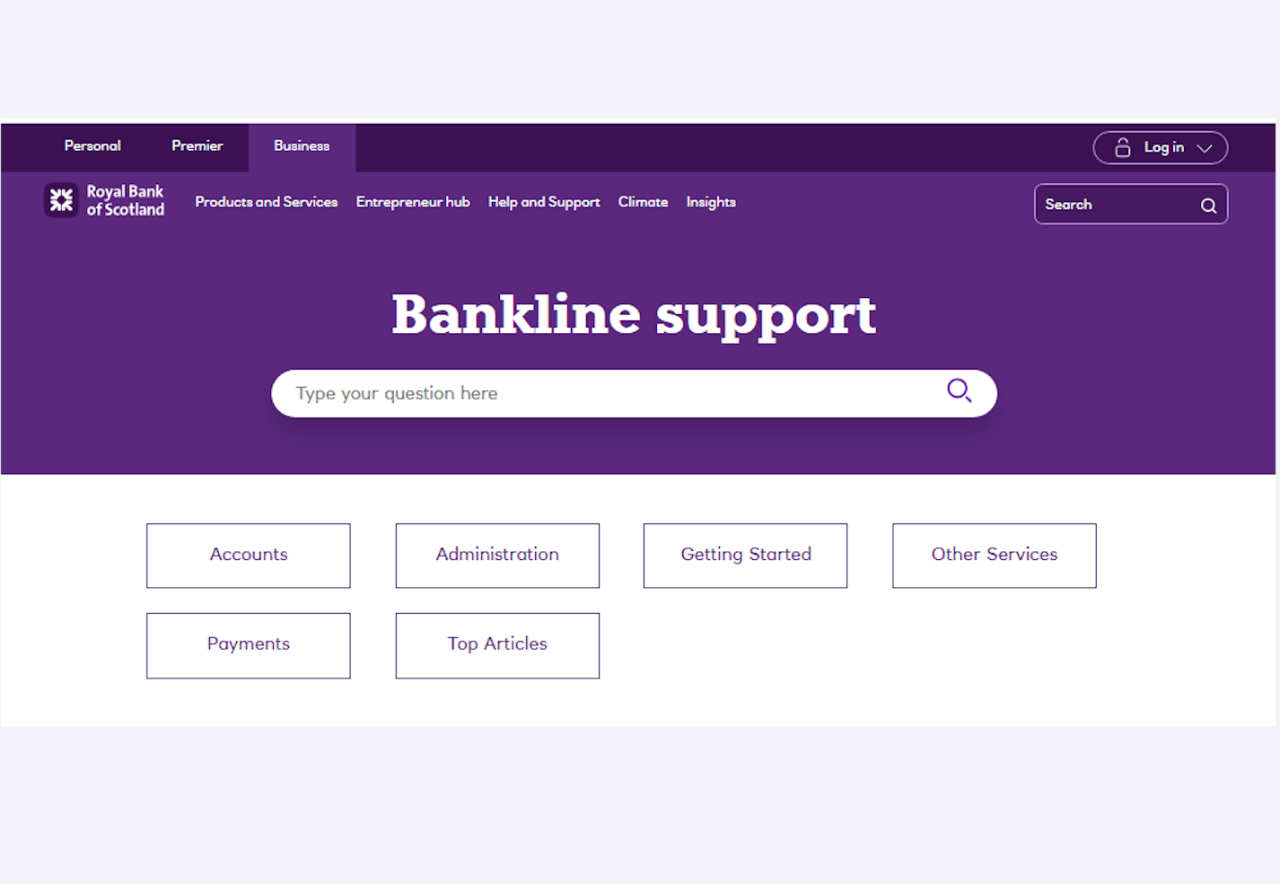
Support
Got a question, or not sure how to do something? Just click Support to search our ‘how-to’ articles.
Cora and webchat
Prefer a chat? Click ‘Chat now’ and Cora, your digital assistant, will help with your query and connect you to a webchat adviser if needed.
Cora is online 24/7 and our advisers are available 9 to 5, Monday to Friday.
To get through to an adviser at any point, just type ‘speak to a person’.
What to cover in the planning session:
Here’s an overview of what to cover. For more details, see the sections below and use the workbook, where you’ll find specific questions to ask.
- Collect email and postal addresses for each person who needs access.
- Decide which accounts you want to add to Bankline and who needs access to them. (The number of accounts added may affect your monthly fees. Read about account fees (PDF, 132 KB)).
- Note down what kind of tasks each user will be doing (eg raising payments).
- Find out which team members are going to use Bankline Mobile.
- Note down some rough estimates for payment limits.
Information Message

A workbook to help
Use this workbook to gather the details. You can then refer back to it when you’re setting up your profile.
Tip:
Gather the basic info that works for you. Don’t worry if you’re not sure on something, you can refine and adapt later.
When deciding who needs access, factor in cover for illness and holidays.
Adobe Acrobat Reader (free to download) is required to access the downloadable content below. Download Adobe Acrobat Reader.
Info to help with the planning session
To have a good planning session, you’ll need to know a bit more about how key parts of Bankline work.
Payment limits and preferences
Bankline has various payment limits and controls to help keep your finances secure and support your security processes.
You can update these settings anytime, but it’s a good idea to start off with some limits and controls in place.

Planning session activity
Review the roles with your team. Decide whether these will work for your organisation, and who will need which role.
Tip: It’s unlikely anyone will need access to everything. To keep things safe, make sure to set up users so they only have the role and access they need.

Join us for a webinar
We’ve now been through everything you’ll need for the planning session.
In the coming weeks, you’ll need to spend time setting up users and accounts and helping your team with Bankline. We recommend blocking out some time in advance for this.
The last thing we recommend is signing up for a webinar for next week, by which point you’ll have your smartcard and our experts will be able to take you through the early stages of set up and answers your questions:
You can usually book several weeks in advance. See upcoming Bankline webinars.
We also recommend signing up to a fraud webinar, which you and your team can attend anytime. It’s not Bankline specific, but it will help your organisation spot the danger signs and build a strong security profile. See upcoming fraud webinars.

That's all for Step 1
Best of luck with your planning session!
If you’d like to get a feel for Bankline and a sneak preview of what’s coming up in Step 2, you can always check out our how to videos, have a read of the Bankline blog, or download our support guides.
Have a cup of tea, you've earned it!
Opens in a new window